 Panasonic Electric Works Networks Co., Ltd. > Support > Setting Examples > PoE Auto Reboot(PING) Setting Procedure(GA-MU/XG-MU Series)(for WEB)
ここから本文です。
PoE Auto Reboot(PING) Setting Procedure(GA-MU/XG-MU Series)(for WEB)
Introduction
In this setting example, we will explain the PoE Auto Reboot settings for the GA-MU/XG-MU series.
Overview of the PoE Auto Reboot Function
PoE Auto Reboot is a function that detects freezes of PoE-powered devices, such as cameras and wireless access points, using three methods(LLDP,PING, or ACLG), and reboots the PoE-powered device by turning the PoE power supply OFF and then ON.
Configuration Example
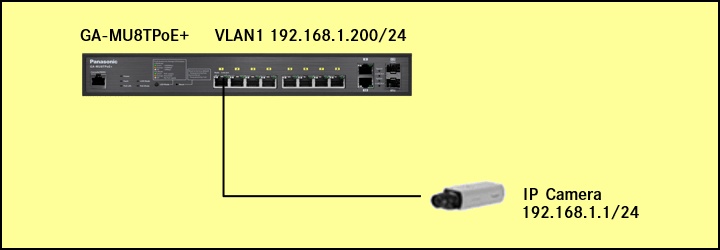
Explanation
- Enable PoE Auto Reboot for the device connected to Port 1.
- Monitor the connected device using PING. If the device stops responding to PING requests, the PoE power supply is turned off and then back on, causing the powered device to reboot.
<Operation Description>
PING monitoring starts when the Auto Reboot function is enabled.
If there is no response for a duration equal to the PING execution interval(default:10 seconds) multiplied by the PING Max Count(default:30), an Auto Reboot is performed.
After an Auto Reboot is performed, the system waits for the configured PD Boot Up Time and then resumes PING monitoring.
Setting Procedure
Step 1.
Connect the PC to the LAN port of the switching hub.
Step 2.
On the login screen, enter the User Name and Password to log in to the Web interface.
Step 3.
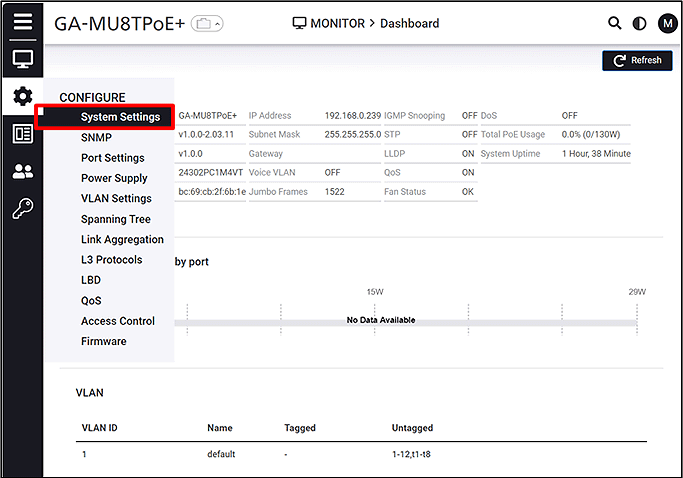
Follow the steps below to proceed to IP Settings.
CONFIGURE > System Settings > IP Settings
Step 4.
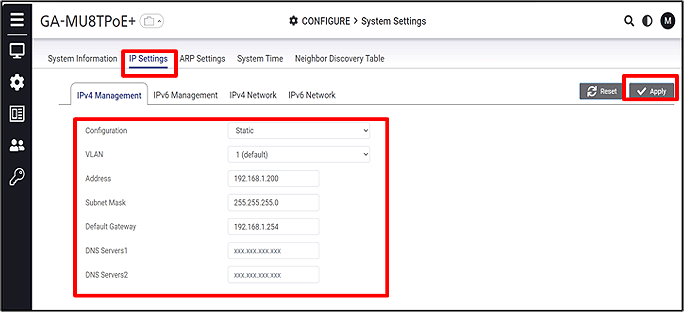
Change the IP Address. (IP:192.168.1.200 Subnet Mask:255.255.255.0 Default Gateway:192.168.1.254)
IP Settings > IPv4 Management
Step 5.
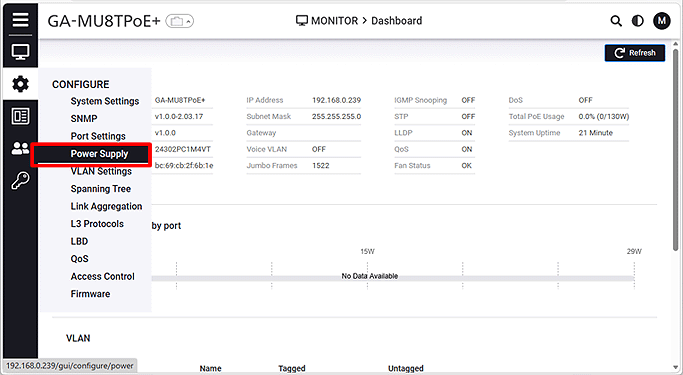
From the Web Console top page, navigate to the Power Settings page.
CONFIGURE > Power Supply
Step 6.
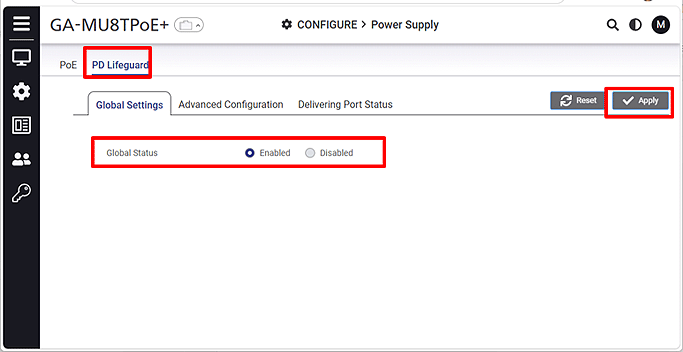
Enable the PD Lifeguard setting. (Default:Disabled)
Global Settings > Global Status
Step 7.
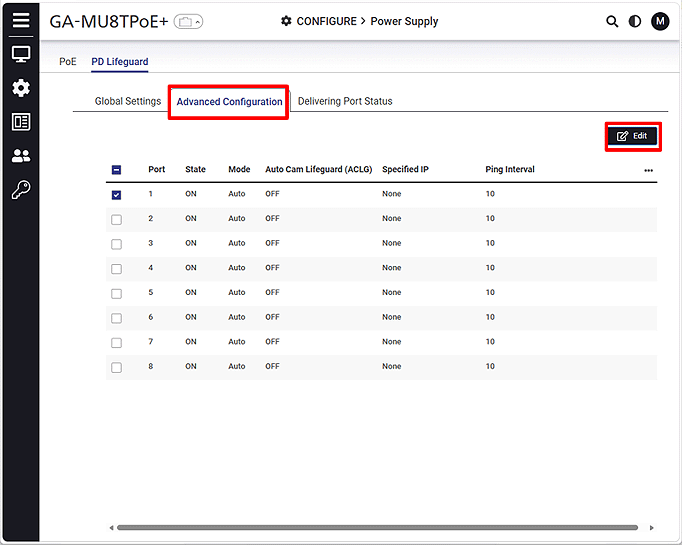
From Advanced Configuration, select the port to which Auto Reboot will be applied, and then click Edit.
Step 8.
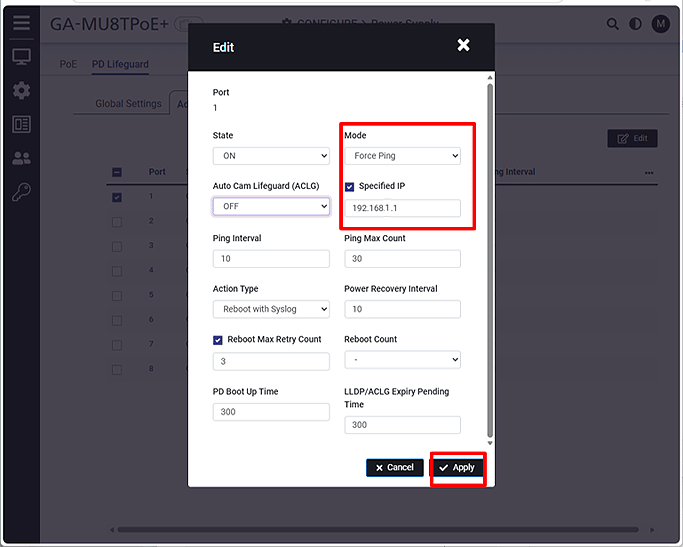
Configure the settings on the edit page.(Mode:Force Ping Specified IP:192.168.1.1)
ここからサブメニューです。