 Panasonic Electric Works Networks Co., Ltd. > Support > Setting Examples > 60℃ Temperature Tolerance Setting Procedure(GA-MU/XG-MU Series)(for WEB)
ここから本文です。
60℃ Temperature Tolerance Setting Procedure(GA-MU/XG-MU Series)(for WEB)
Introduction
In this setting example, we will explain the procedure for configuring the 60℃ temperature tolerance settings for the GA-MU/XG-MU series.
Configuration Example
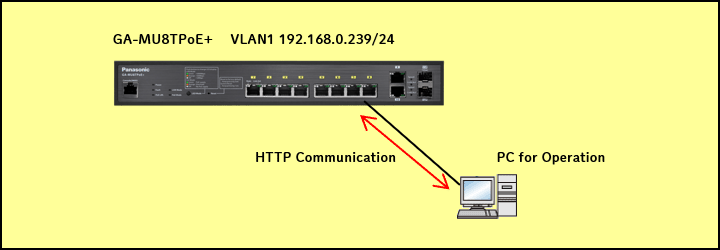
Explanation
When 60℃ Mode is enabled, the power capacity is limited, allowing operation environments with temperatures up to 60℃.
Since the switching hub has the DHCP client function enabled by default, it can obtain an IP address from a DHCP server. However, in this configuration example, we will explain a login method that does not use a DHCP server.
Two minutes after the LAN port link comes up, the IP address 192.168.0.239/24 is automatically assigned, allowing access to the Web Console.
Setting Procedure
Step 1.
Connect the PC to the LAN port of the switching hub.
Step 2.
On the PC, launch a web browser (such as Edge), enter “192.168.0.239” in the address bar, and press the Enter key.
Note: It takes approximately 2 minutes after connecting the LAN cable for the login screen to appear.
Step 3.
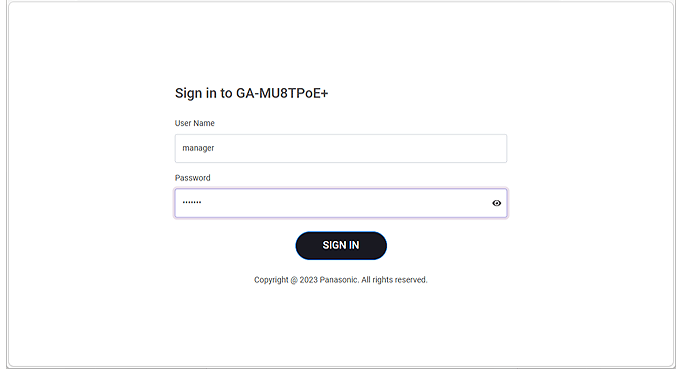
On the login screen, enter the User Name and Password to log in to the Web interface.
The default setting for the User Name/Password is [manager].
Step 4.
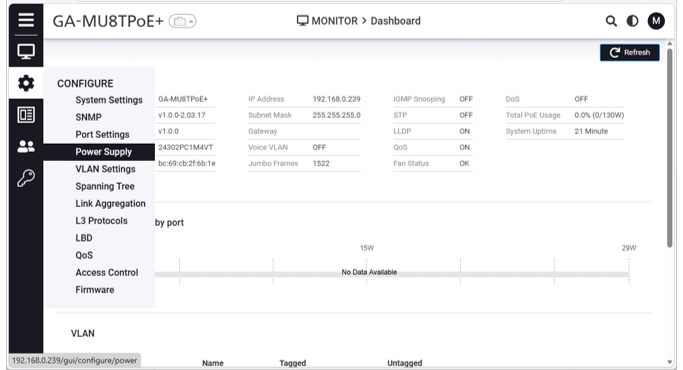
Navigate to the Web Console top page.
Step 5.
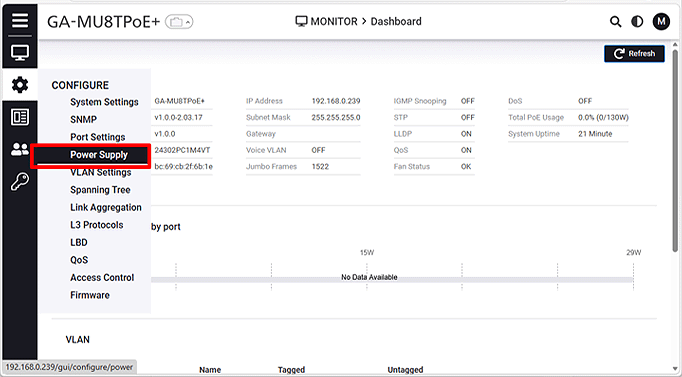
From the Web Console top page, proceed to the Power Settings page.
CONFIGURE > Power Supply
Step 6.
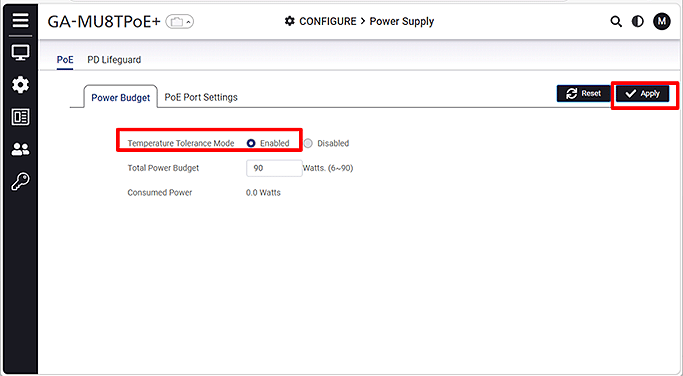
In the Power Budget settings, enable Temperature Tolerance Mode.(Default:Disabled)
PoE > Power Budget > Temperature Tolerance Mode
ここからサブメニューです。